Reduce Image Size
Compress and resize JPG, PNG and WEBP images online.
Reduce Image Size Online – Compress Image to 20KB, 50KB, 100KB, 200KB
Reducing image size is useful when you need to upload a photo, signature, document, or other image to a website with a specific file-size limit. Many government job applications, exam forms, college admission portals, and online services require images to be uploaded within a particular size, such as 20 KB, 50 KB, 100 KB, 200 KB, or 500 KB.
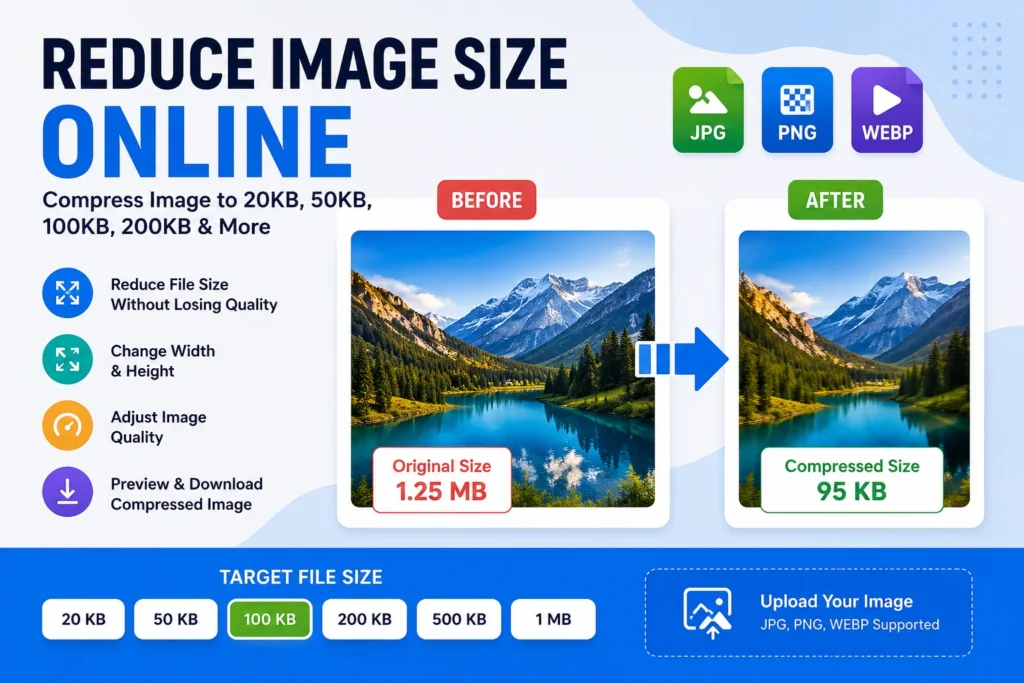
Our Reduce Image Size Online Tool makes it easy to compress and resize images directly in your browser. You can upload JPG, PNG, or WEBP images, set a target file size, change image dimensions, adjust quality, select an output format, preview the result, and download the compressed image.
Reduce Image Size Tool
The Reduce Image Size tool is an online image compressor and resizer designed to help users reduce the file size of an image without complicated software.
You can enter a target file size in KB according to your requirement. For example, if an application requires an image below 200 KB, you can enter 200 KB as the target size.
The tool also provides options to change image width and height, maintain the original aspect ratio, adjust image quality, and choose between JPG, PNG, and WEBP output formats.
Key Features
1. Reduce Image File Size
The tool can reduce the size of JPG, PNG, and WEBP images. This is useful when a website or application has a maximum upload-size limit.
2. Set Target File Size
You can enter your required target size in KB, such as:
- 20 KB
- 50 KB
- 100 KB
- 200 KB
- 500 KB
- 1 MB
The tool attempts to compress the image according to the selected target size.
3. Resize Image Width and Height
You can manually enter the required image width and height in pixels. This can be especially useful when an application requires specific image dimensions in addition to a file-size limit.
4. Maintain Aspect Ratio
The Maintain Aspect Ratio option helps preserve the original proportions of the image when you change its width or height. This helps prevent the image from appearing stretched or distorted.
5. JPG, PNG and WEBP Support
The tool supports commonly used image formats, including:
- JPG
- PNG
- WEBP
You can also select the desired output format before compression.
6. Adjust Image Quality
The quality slider allows you to control the compression quality. For JPG and WEBP images, reducing quality can significantly reduce the file size.
However, extremely low quality may make the image blurry or reduce its visual clarity.
7. Preview Before Download
After compression, you can compare the original and compressed images using the built-in preview section.
The tool also displays the original file size, new file size, and percentage reduction.
8. Download Compressed Image
Once the image has been compressed, simply click the Download Compressed Image button to save the new file to your device.
How to Reduce Image Size Online?
Follow these simple steps to compress an image:
Step 1: Open the Reduce Image Size Online tool.
Step 2: Click Click to Upload Image or drag and drop your image into the upload area.
Step 3: Select a JPG, PNG, or WEBP image from your device.
Step 4: Enter your required file size in the Target File Size field.
Step 5: Enter the required width and height if specific dimensions are needed.
Step 6: Keep Maintain Aspect Ratio enabled if you want to preserve the original image proportions.
Step 7: Select the required output format.
Step 8: Adjust the image quality if necessary.
Step 9: Click Compress Image.
Step 10: Check the original and compressed file sizes and download the compressed image.
How to Compress an Image to 100 KB?
If you need an image below 100 KB, enter 100 KB in the Target File Size field and click the Compress Image button.
The tool will attempt to reduce the file size to the selected target. If the image is very large or has high resolution, reducing its width and height may also be necessary.
For example:
Original Size: 1 MB
Target Size: 100 KB
Output Format: JPG or WEBP
Quality: Adjust according to the result
The exact final size may vary depending on the original image, dimensions, format, and image content.
How to Compress an Image to 200 KB?
To create an image around 200 KB, enter 200 KB as the target file size.
This can be useful for government recruitment forms, exam applications, college forms, scholarship applications, and other websites that specify a maximum image-size limit.
Always check the official application instructions because some websites specify both the maximum file size and required dimensions.
How to Reduce Image Size for Government Forms?
Many government recruitment and examination websites require applicants to upload photographs and signatures within specific file-size limits.
For example, an application may require:
- Photograph below 100 KB
- Signature below 50 KB
- Document below 500 KB
The exact requirements vary from one application to another.
Before uploading a compressed image, check the official notification or application page for the required file size, dimensions, format, and other specifications.
Benefits of Image Compression
Reducing image size provides several benefits:
- Makes images easier to upload to online forms
- Helps meet website file-size limits
- Reduces storage requirements
- Makes email attachments smaller
- Makes image sharing easier
- Can help improve website loading performance
- Allows large photographs to be converted into smaller files
- Helps prepare images for government and recruitment applications
Does Compressing an Image Reduce Quality?
Image compression can reduce quality depending on the format and compression settings.
JPG and WEBP compression can reduce file size by removing some image information. If the quality is reduced too much, the image may become blurry or show visible compression artifacts.
For the best result, use a balance between file size and image quality instead of choosing the lowest possible quality.
JPG vs PNG vs WEBP
JPG
JPG is commonly used for photographs and other images containing many colors. It can provide a good balance between image quality and file size.
PNG
PNG is useful for graphics, logos, screenshots, and images that require transparency. However, PNG files can sometimes be larger than JPG files, especially for photographs.
WEBP
WEBP is a modern image format designed to provide efficient compression while maintaining good visual quality. It can be useful for websites and digital content.
If you are uploading an image to a government or recruitment portal, always check whether the website accepts WEBP or requires JPG/PNG.
Can I Compress Images on Mobile?
Yes. The tool can be used from a smartphone or tablet through a modern web browser.
Upload the image from your device, set the required file size, compress it, and download the resulting file.
Is the Image Uploaded to a Server?
The tool is designed to process images directly in the browser using browser-based image processing. The compressed image is generated on the user’s device rather than requiring the image to be uploaded to a separate image-processing server.
For sensitive documents, users should still review the privacy practices of the website they are using.
Why Is My PNG Image Still Large?
PNG images use a different compression approach from JPG and WEBP. The normal quality slider used for JPG and WEBP does not reduce PNG file size in the same way.
If a PNG image is still too large, you can try reducing its dimensions or converting it to JPG or WEBP when transparency is not required.
Frequently Asked Questions
Can I compress an image to 20 KB?
Yes. Enter 20 KB as the target size. However, reaching a very small file size may require reducing the image dimensions or quality, which can affect image clarity.
Can I compress an image to 50 KB?
Yes. Set the Target File Size to 50 KB and click Compress Image. The final size can vary depending on the original image and selected settings.
Can I compress an image to 100 KB?
Yes. Enter 100 KB in the target size field. JPG and WEBP are generally suitable when you need a smaller file size.
Can I compress an image to 200 KB?
Yes. Enter 200 KB as the target file size and compress the image.
Does the tool support JPG?
Yes. JPG images can be uploaded, resized, compressed, previewed, and downloaded.
Does the tool support PNG?
Yes. PNG images can be uploaded, resized, compressed, previewed, and downloaded.
Does the tool support WEBP?
Yes. WEBP images can be uploaded and converted to the selected output format.
Conclusion
The Reduce Image Size Online Tool provides a simple way to compress and resize images without installing additional software. You can upload JPG, PNG, or WEBP images, select a target file size, change dimensions, adjust quality, choose an output format, preview the result, and download the compressed image.
It can be particularly useful for government job applications, exam forms, college admissions, scholarship applications, website images, email attachments, and other online forms where image-size limits are common.
Before uploading a compressed image to any application portal, always check the official requirements for maximum file size, image dimensions, accepted format, and image quality.